Sending & signing
Payment options & QR codes
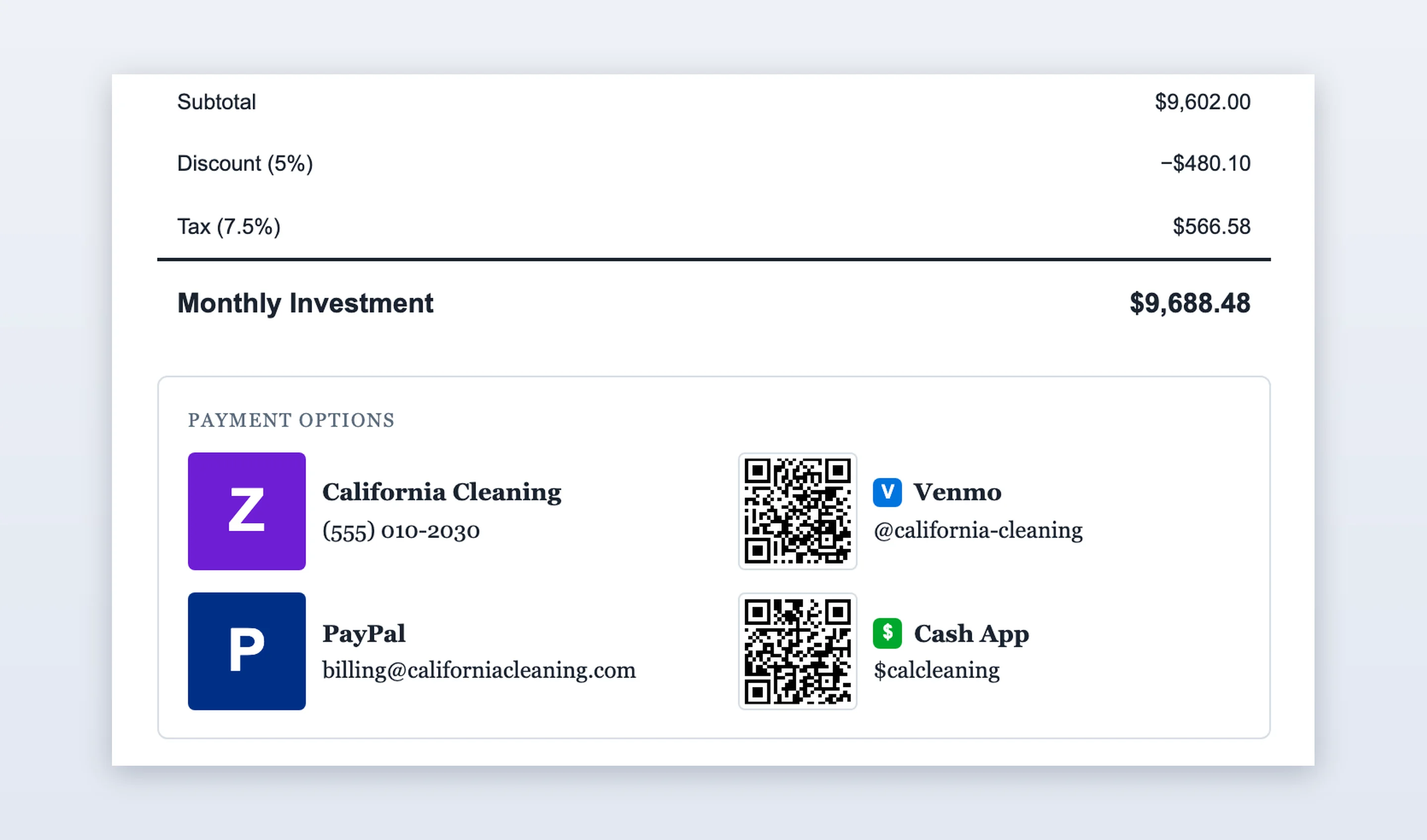
List the ways your clients can pay you and Bidas prints them on every proposal you send, with a scannable code where one is possible. Set it up once per business in Settings → Payment options.
The methods
- Zelle — the email address or phone number enrolled with your bank.
- Venmo — your username, with or without the @.
- PayPal — your PayPal.Me name. Pasting the full link works too.
- Cash App — your cashtag, with or without the $.
- Check — who the cheque is payable to, plus a note for where to mail it.
- Other — anything else, including a payment page of your own.
QR codes
Venmo, PayPal and Cash App publish a public profile URL, so Bidas builds the code from your handle the moment you save it. Your client scans it and lands on your payment page — no typing, no transposed digits.
Zelle works differently. Its codes are created inside your own banking app and encode a bank enrolment token, not your email or phone, so there is no way to generate one from a handle — anything built that way would scan to nothing. Export the code from your bank and use Upload code instead. Your email or phone still prints either way.
Codes are generated once, when you save the method, and stored with it. Printed proposals and PDFs carry them with no connection needed.
What prints
Each method appears with its own coloured mark, the handle, and any note you added — “Preferred — no fees”, or where to post a cheque. The block sits under the pricing table on all fifty templates and picks up the colours of whichever theme you are using.
Two switches control each method:
- Show on proposals — turn a method off to keep it on file without printing it.
- Print a QR code — keep the method but drop the code, for a tighter page.
A company with no payment options set up prints nothing at all — no empty box.
Bank transfers
Bidas deliberately has no bank-transfer field. Routing and account numbers would then be printed on every proposal you send, including the majority that never become customers, and every copy that gets forwarded or left on a desk. If you take wires, add a note under Other asking clients to call for the details.
On your phone
Proposals sent from the Bidas mobile app carry the same payment block. Add and edit the methods on the desktop; they sync to your phone with everything else.