
Invoicing
Invoices and payments
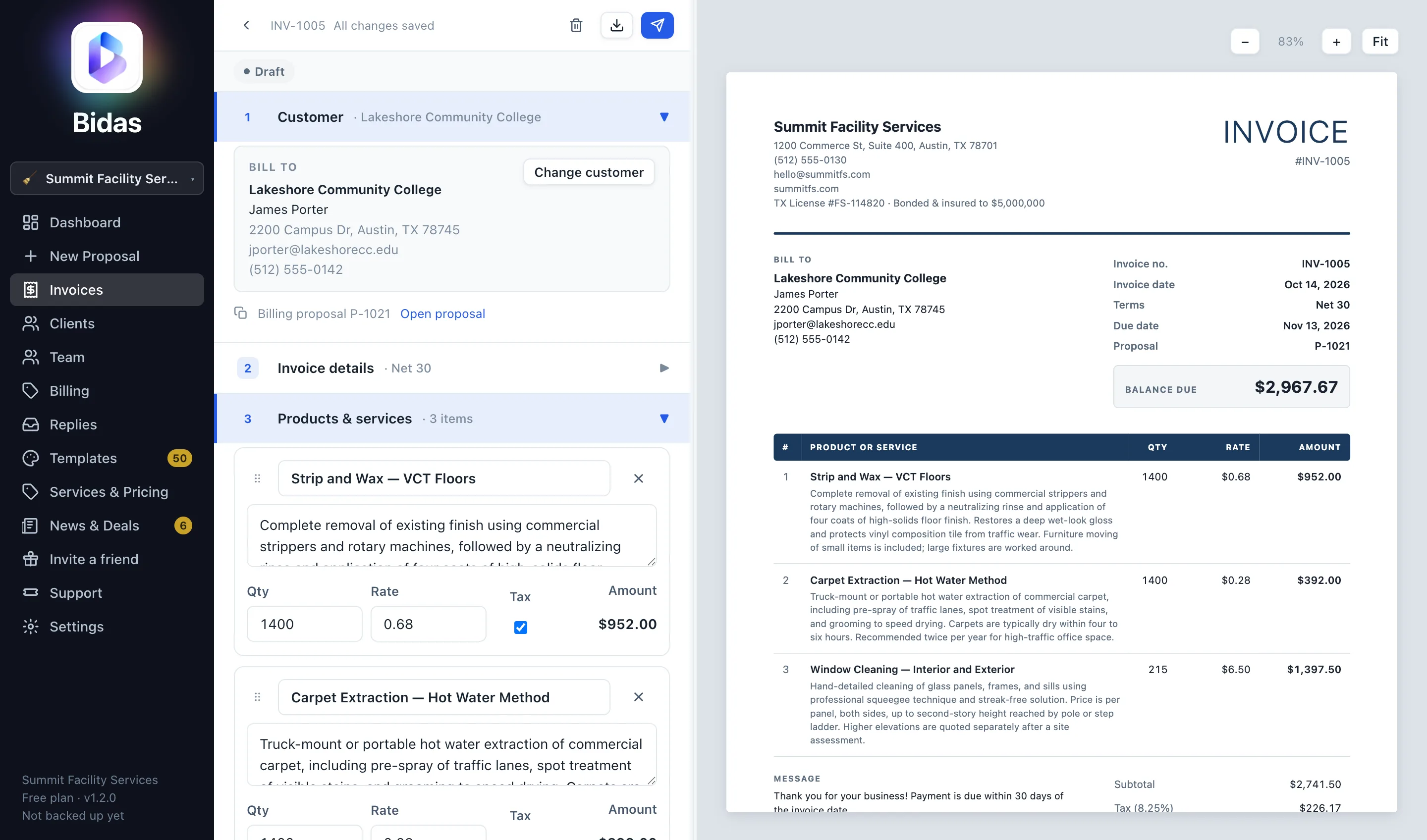
Bidas bills the work you win. Invoices sits right under New Proposal in the sidebar, and invoices use the same clients and the same Services & Pricing list as your proposals, so nothing gets typed twice.
Create an invoice
Click New invoice and choose how to start:
- From a proposal: pick the proposal and Bidas copies its customer, services, quantities, discount and tax. Accepted and closed proposals come first. A proposal you've already billed is tagged Invoiced, which keeps a deposit invoice and a final invoice for the same job easy to tell apart.
- Blank invoice: start empty and add lines yourself.
Either way, the next step is Select a customer. From a proposal, its customer is already selected; pick someone else if another party pays the bill. A new customer is added right there and saved to your client list.
Billing from inside a proposal works too: once a proposal has been sent, its status bar shows Create invoice.
Lines, terms and totals
Add product or service opens your Services & Pricing list. Type a name the list doesn't have to add a new line, then click Save to Services & Pricing to keep it for next time. Quantity, rate and the tax box work the same as in a proposal, and the totals use the same math.
Choose payment terms (due on receipt, Net 15, 30, 45 or 60) and the due date fills itself in. Type a due date of your own and the terms switch to Custom. Bidas starts the next invoice on the terms you used last.
Numbers count up per business: INV-1001, INV-1002 and on. Edit the number if your books use a different series.
What your customer gets
A US Letter invoice with your logo and contact details, the bill-to block beside the invoice number, dates and terms, a line table, and totals ending in the balance due. If you've set up payment options, your Zelle, Venmo, PayPal, Cash App or check details print at the bottom with their QR codes. Colours follow your theme, and the labels are English, Spanish or Portuguese, chosen per invoice.
The preview on the right is the PDF. Export it with the download button, or send it.
Sending
Send emails the invoice as a PDF attachment, from your own mailbox when one is connected in Settings, otherwise through Bidas. Sent it some other way? Mark as sent starts the tracking. Invoices go out as PDFs only; there's no online signing page, because there's nothing to sign.
Payments
When money arrives, click Record payment. The amount starts at the full balance; change it for a deposit or a part payment. Every payment is kept with its date, and the invoice moves from Sent to Partially paid to Paid on its own. A paid invoice prints with a faint PAID watermark.
A sent invoice past its due date shows as Overdue. There's nothing to set up: Bidas works it out from the due date every time you look.
Recorded something by mistake? Mark as unpaid clears the payments. Void cancels an invoice without deleting it; a voided invoice owes nothing and comes back with Restore.
Keeping track
The Invoices page opens with four totals: unpaid, overdue, collected this month and drafts. Click one to filter the list to it. Once you have an invoice, the dashboard adds a row with what's outstanding, what's overdue and what you've collected this month, counted by the date each payment arrived.
Backup and sync
Invoices back up to your account and sync between your computers with your proposals and clients. They're created and managed in the desktop app.